Tandem for Android
Tandem for Android requires a Tandem server that you, or someone you know, runs. It is not a bookstore and it has no library of its own — it reads the ebooks and audiobooks on a server you point it at, and without one it has nothing to sign in to.
Get the app

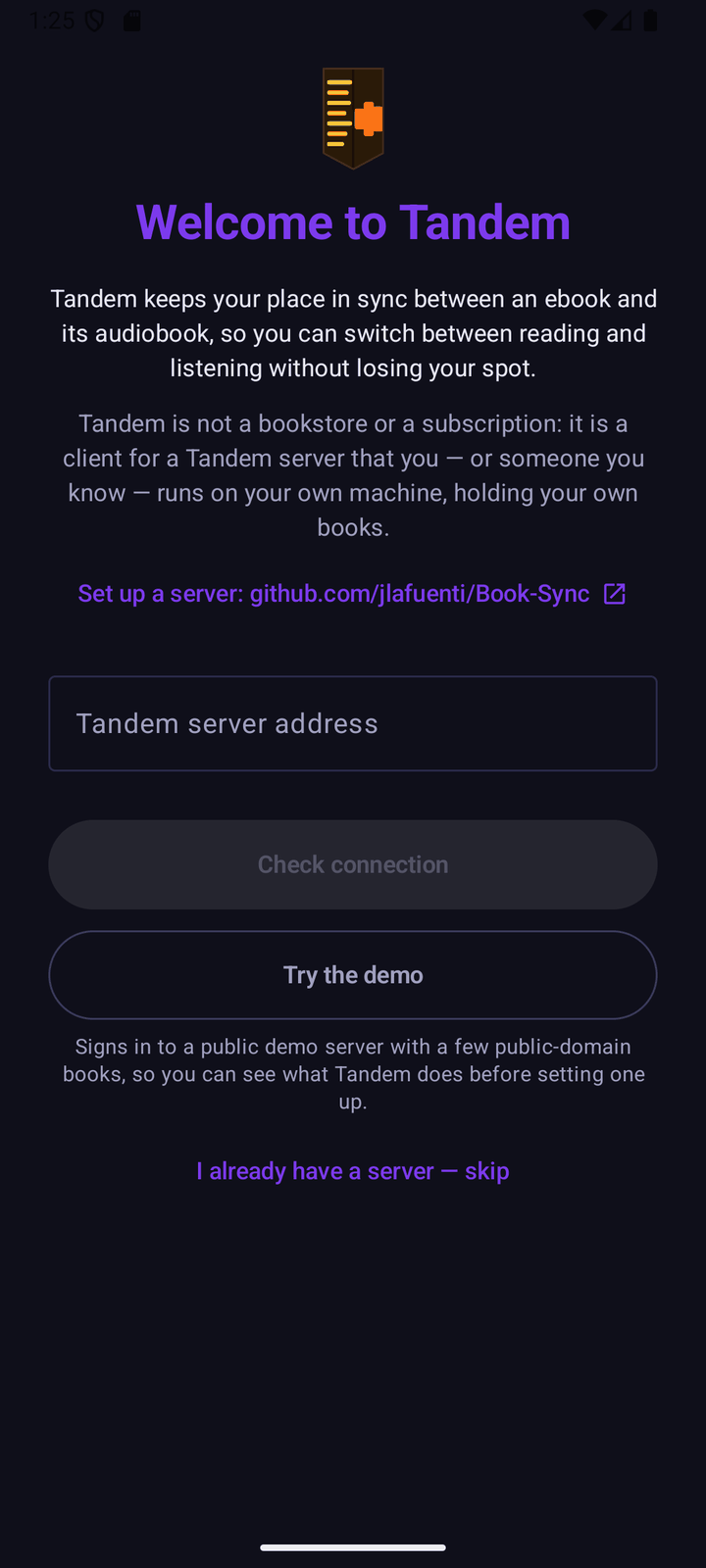
The app ships with no server address built in. The first screen you see asks for one: enter your
server's address (for example https://tandem.example.com), tap Check connection, then
Continue to sign in. You can change the server later from Account → Server URL; doing so
signs you out of the old one, but anything you downloaded from it is kept and comes back if you
switch back.
Try the demo
Don't have a server yet? The same first-run screen has a Try the demo button that signs you in
to a public demo server with no typing required: address https://demo.tandembook.com, account
demo, password tandemdemo. It holds a small set of public-domain books, already transcribed and synced,
and the account can read and listen but can't change anything in the library.
What it does
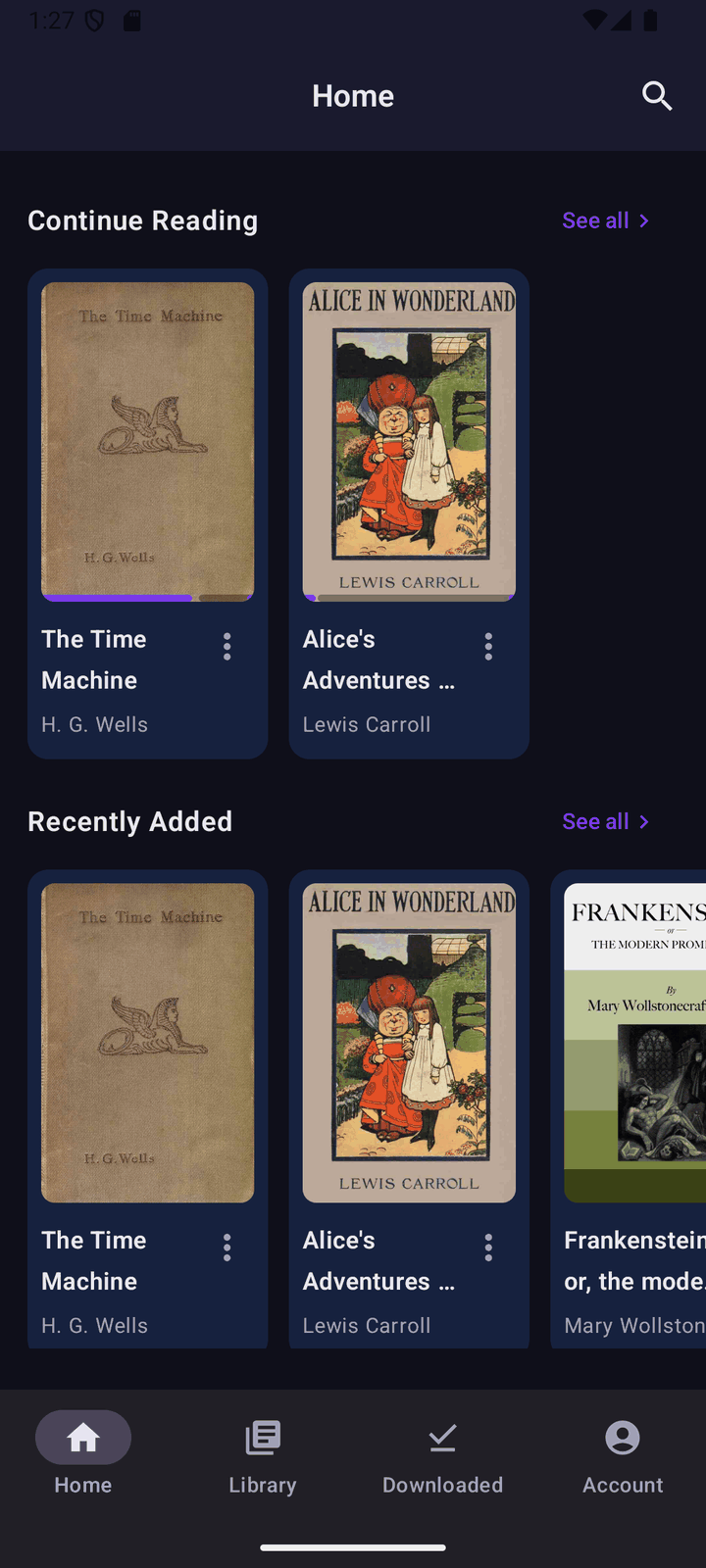
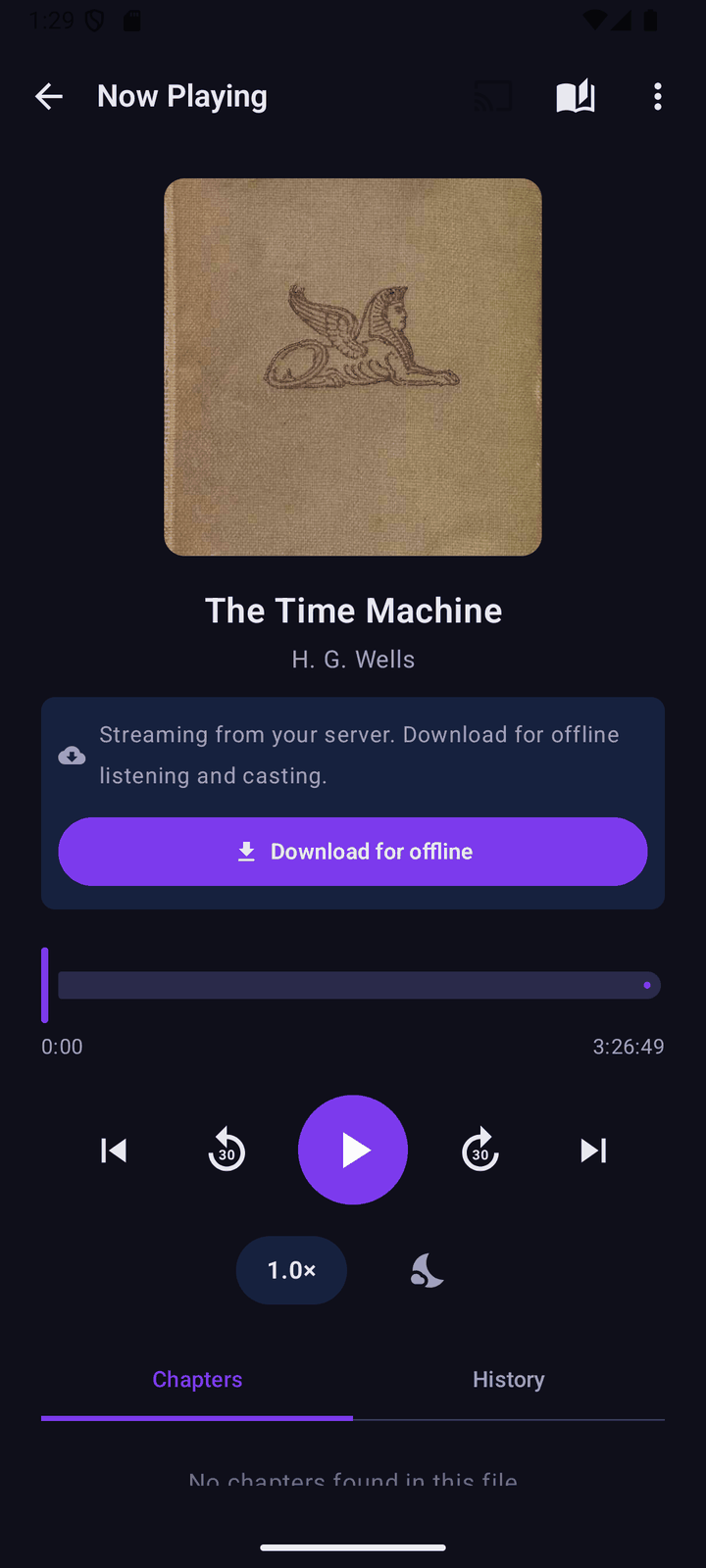
- Offline downloads. Download a book's ebook, its audio, or both, and read or listen with no connection. A downloaded file never touches the network again.
- Streaming when not downloaded. Press play on any audiobook and it starts whether or not it's on the device — the app streams it from your server, with seeking that works over the stream.
- Background playback with lock-screen controls. Audio keeps playing when you leave the app, and the lock screen and notification shade get title, author, cover, and transport controls.
- Android Auto. A browse tree in the car with your library and a Continue Listening tab, so you can pick up a book from the driver's seat.
- Cast. Send audio to a Chromecast. Casting needs the book downloaded first, since a cast receiver plays from your phone's own copy over the local network.
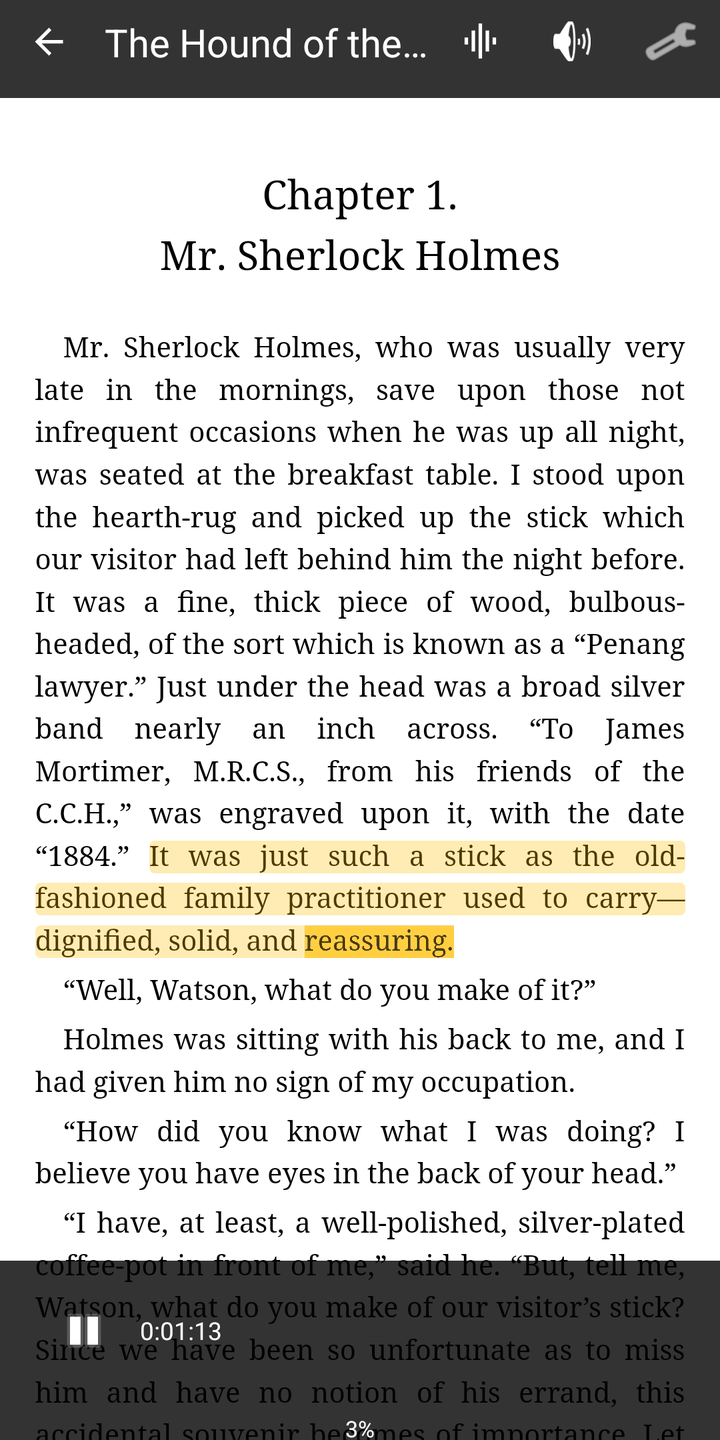
- Read along. Turn on Follow audio in the reader and the page keeps up with the narrator: the sentence being read is highlighted, the word being spoken is marked inside it, and the page turns on its own. Turn a page by hand and the audio keeps going until you tap Back to audio. Select a sentence and choose Read along to start from there. The word mark needs a transcript made with word timing; a book transcribed before that keeps the sentence highlight until it is transcribed again.
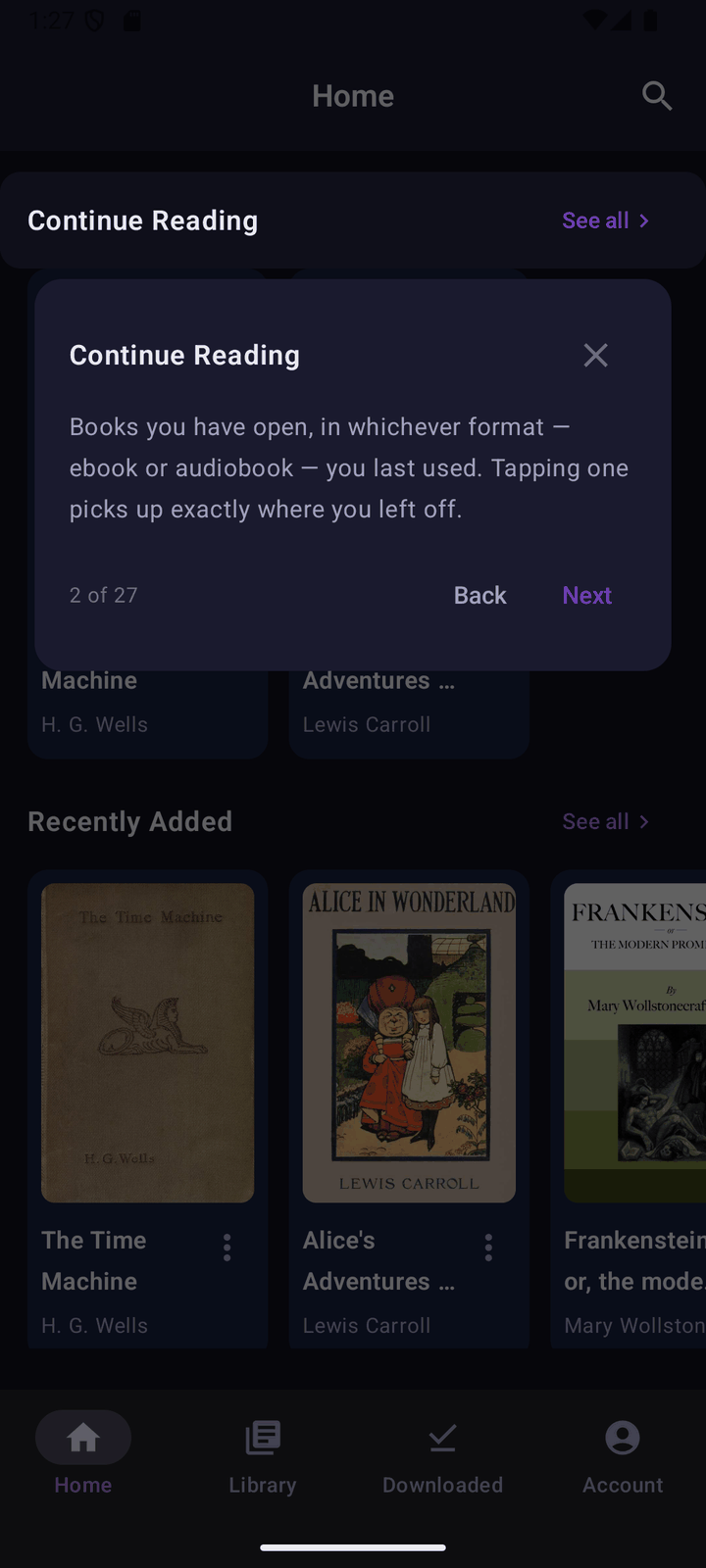
- A guided walkthrough. A five-minute tour on first sign-in — and any time after that from Account → Help → Replay the walkthrough — that points at the real controls: opening a book, the reader's switch to audio and Follow audio, the player's switch back, and where downloads and your library filters live.
Reading position is shared with the web app through the server: the portable coordinate is a chapter and a sentence within it, so the same book opens at the same place whether you were last reading on your phone or in a browser.
Privacy
The app talks only to the server you configure. The one outside call it makes on its own is the reader's Define action, which sends the selected word to a dictionary service — nothing else leaves the device, and nothing is sent while you're simply reading or listening. Full details: privacy.md.
Build it yourself
The app isn't only distributed through Play — you can also build and sideload it yourself; see docs/android.md for the steps.
Go deeper
- docs/android.md — building, signing, streaming and offline behavior, Android Auto, casting, the walkthrough, and position sync in detail
- Add your books
- Read and listen in sync